 Skip to content
Client Portal Guide
Welcome
Welcome to our client portal guide. Here you will find everything you need to help and guide you surrounding the client portal. Things included in this guide:
What is a Client portal(FTP)?
A client portal is a secure online platform where clients can access information, manage accounts, and interact with a business. It allows clients to view reports, track progress, and complete tasks like payments or requests.
An FTP (File Transfer Protocol) is a way to transfer files between computers over the internet. While both can share files, a client portal offers more features like account management and communication, while FTP is mainly for transferring files.
Why FTP?
Why We Created Our FTP Client Portal
We developed our FTP (File Transfer Protocol) client portal to make working with us more efficient, secure, and seamless. Managing projects, sharing files, and staying updated can often become cumbersome and scattered. Our client portal streamlines these processes, providing a central hub where everything is organized and easily accessible.
Key Benefits of the FTP Client Portal:
- Enhanced Security: Safeguard your files with secure file transfer protocols, ensuring your data is protected at every stage.
- Simplified Collaboration: Easily upload and download files, track tasks, and stay updated on project progress—all in one place.
- Improved Organization: With dedicated projects, conversations, and tasks, everything you need is centralized for easy access and better oversight.
- Real-Time Updates: Stay informed with up-to-date notifications about project milestones, completed tasks, and file updates.
- Streamlined Workflow: By providing you with a user-friendly interface, we minimize back-and-forth communications and help you focus on what matters most.
Our goal is to provide you with an effortless experience that saves time, reduces complexity, and enhances our collaboration. The FTP client portal ensures that every aspect of your project is managed with clarity and efficiency.
Client Portal Terms of Service
Before signing up and using our portal, please be aware of our Terms of Service.
Signing up to our portal
Please head over to our Account sign up page:
https://www.thedsgroup.co.uk/create-my-account/
Or Click the button below.
Please follow the prompts to sign up.
Please note that only one person can be logged into one account at a time. If you would like multiple users under one company, please repeat this process the required amount of times.
Logging in
When your account has been created by us, you will receive an email from us on its creation. Please check your spam just in case it is there.
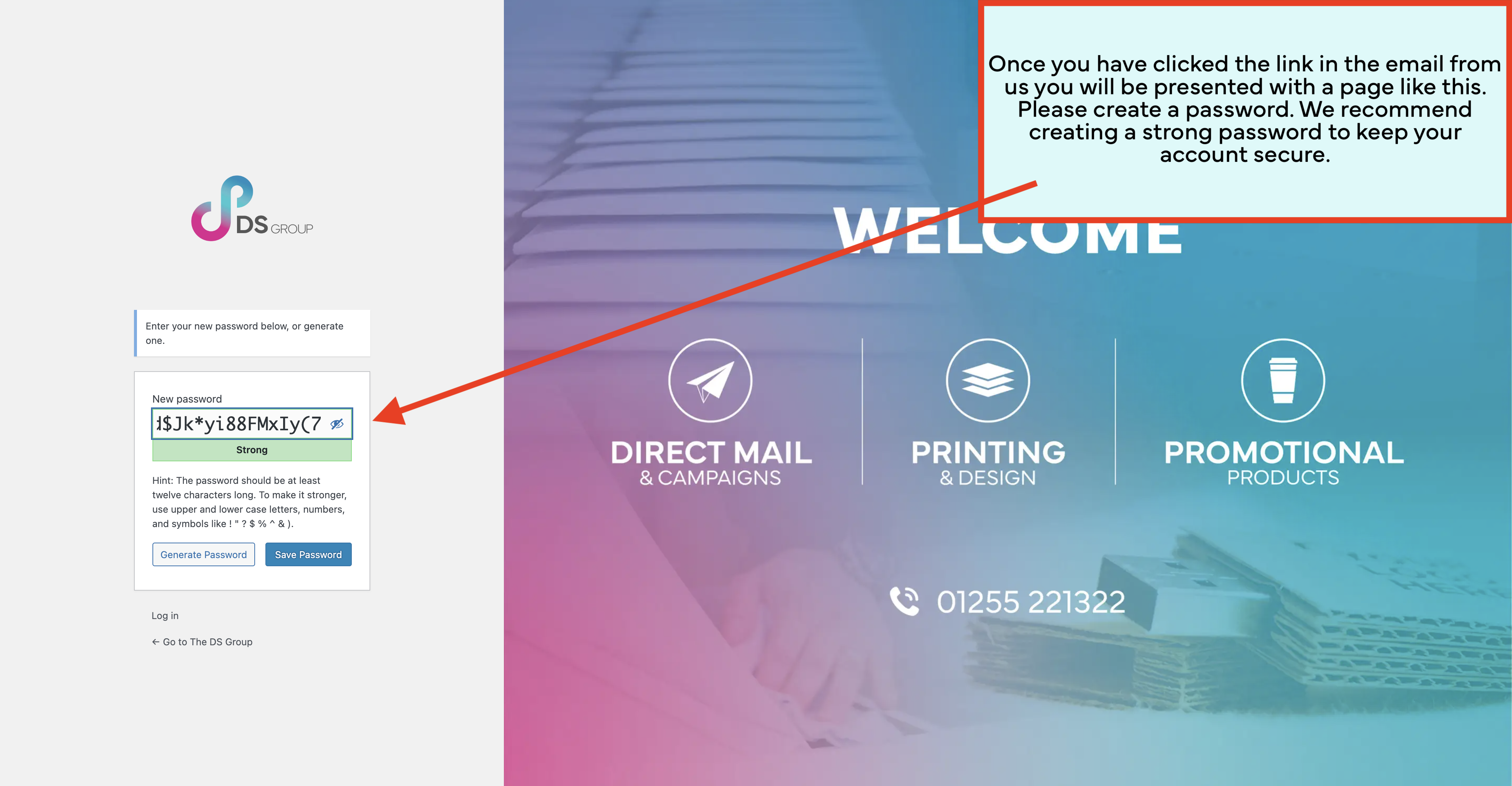
In the email, you will receive your Username and a link to create your password. Please follow the link and create a password. We recommend creating a strong password for your account security.

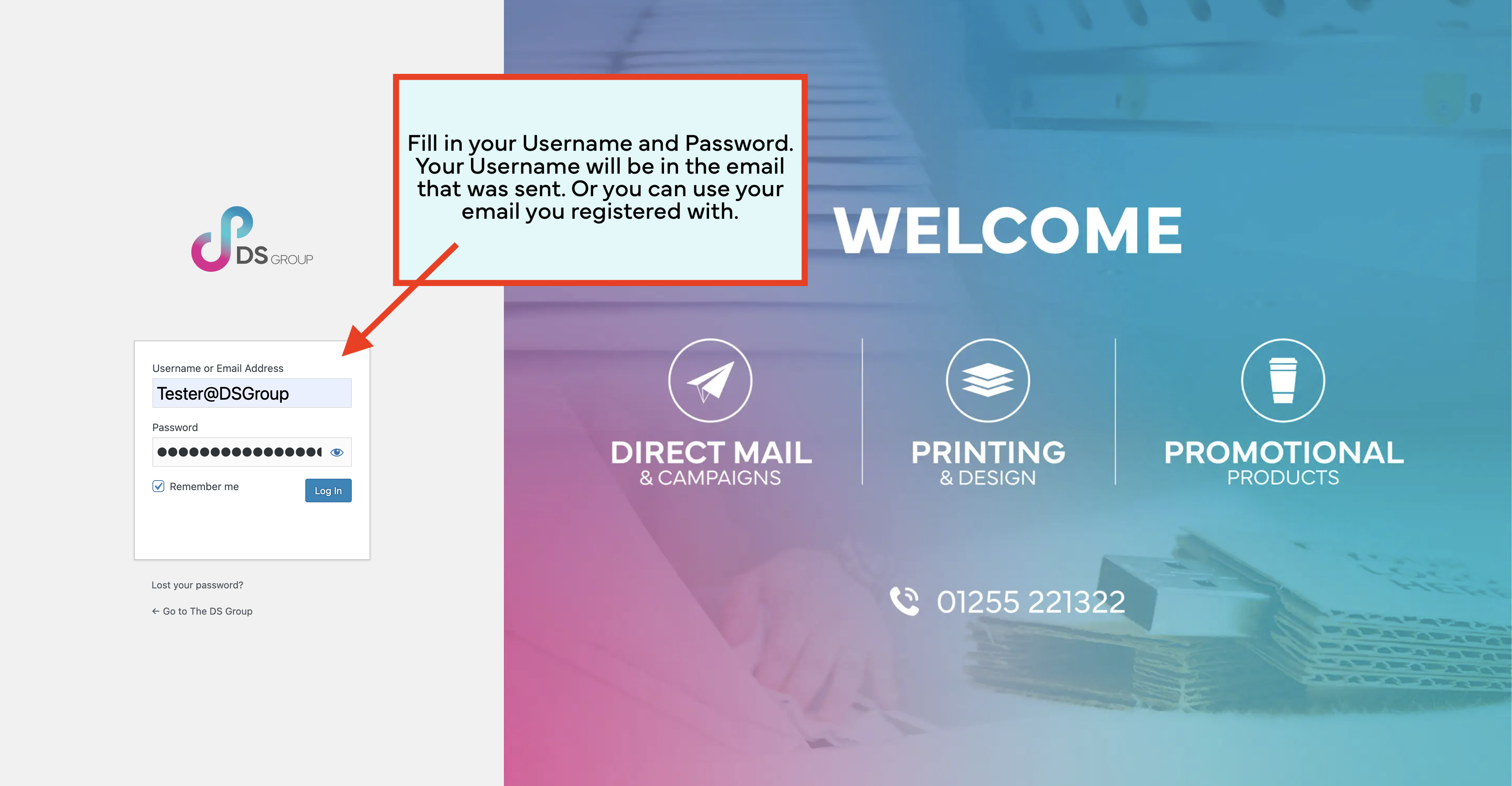

Whenever you need to log into your account please click client portal on our website menu or this link:
Visiting The Portal
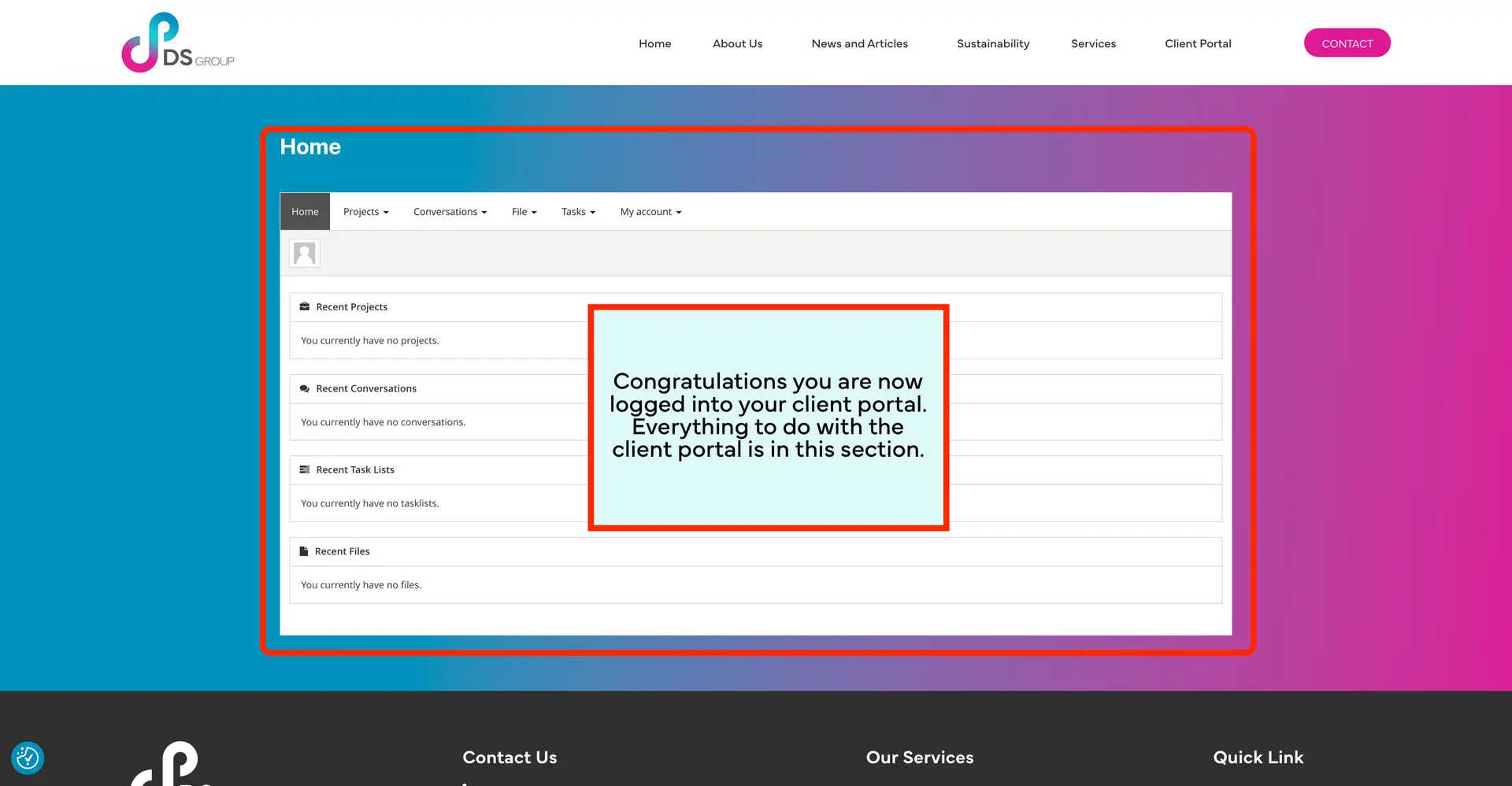
When you log into the portal for the first time, it might seem daunting at first. But don’t worry, we are here to help. As you can see, you are on the home page, and it looks pretty dull. Don’t worry sooner or later, that will be completely filled up with your amazing work.

As you can see, there is a clear menu featuring lots of different pages within the client portal. We will go over every page in complete detail. Go around and have a look at every page to familiarise yourself with everything. And when you’re ready, head over to my account and follow the next instructions.
My account
Here is the My account option on the menu. Here you will see there are three different options to choose from. Please note changing your account details is only optional and not required.
Each section:
Account details-
Here you can view all of your account details that have been saved to your account.

Edit account-
General-
Here you can change all your account details.
Account details- include your primary email, nickname, display name, and password.
Personal details- include your first and last name, personal website and biography.

Addresses-
Here you can fill in your home and billing address. What needs to be added here?

Logout-
Here, you can log out of your account. Make sure you remember your password!
Home
Here is the homepage. Don’t worry if right now it’s looking a bit dull, it will fill up with all of your wonderful files, projects, conversations and tasks.

Files
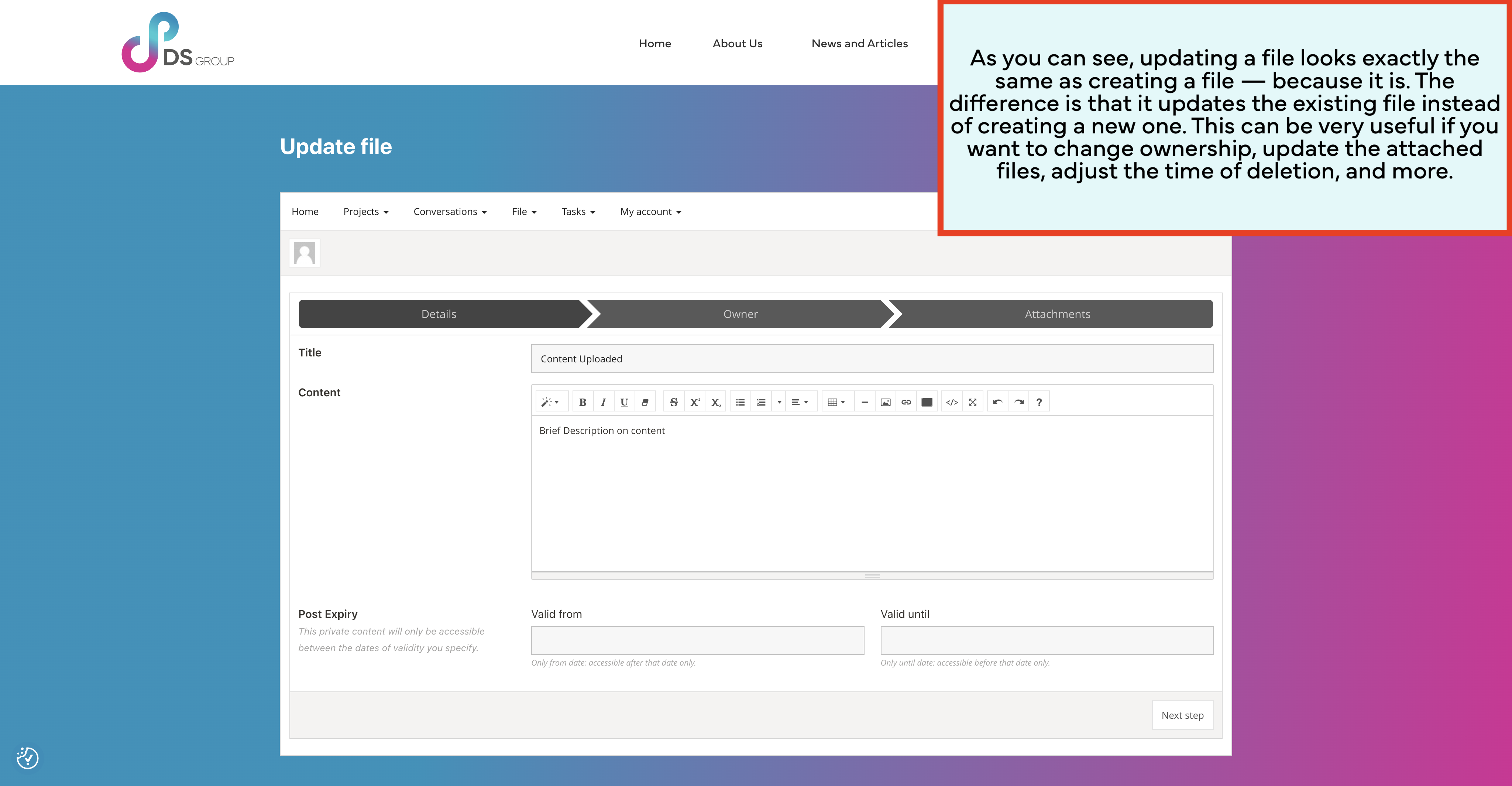
This is the basic use case for our client portal. Quick and easily upload, receive and view any file type shared with us.
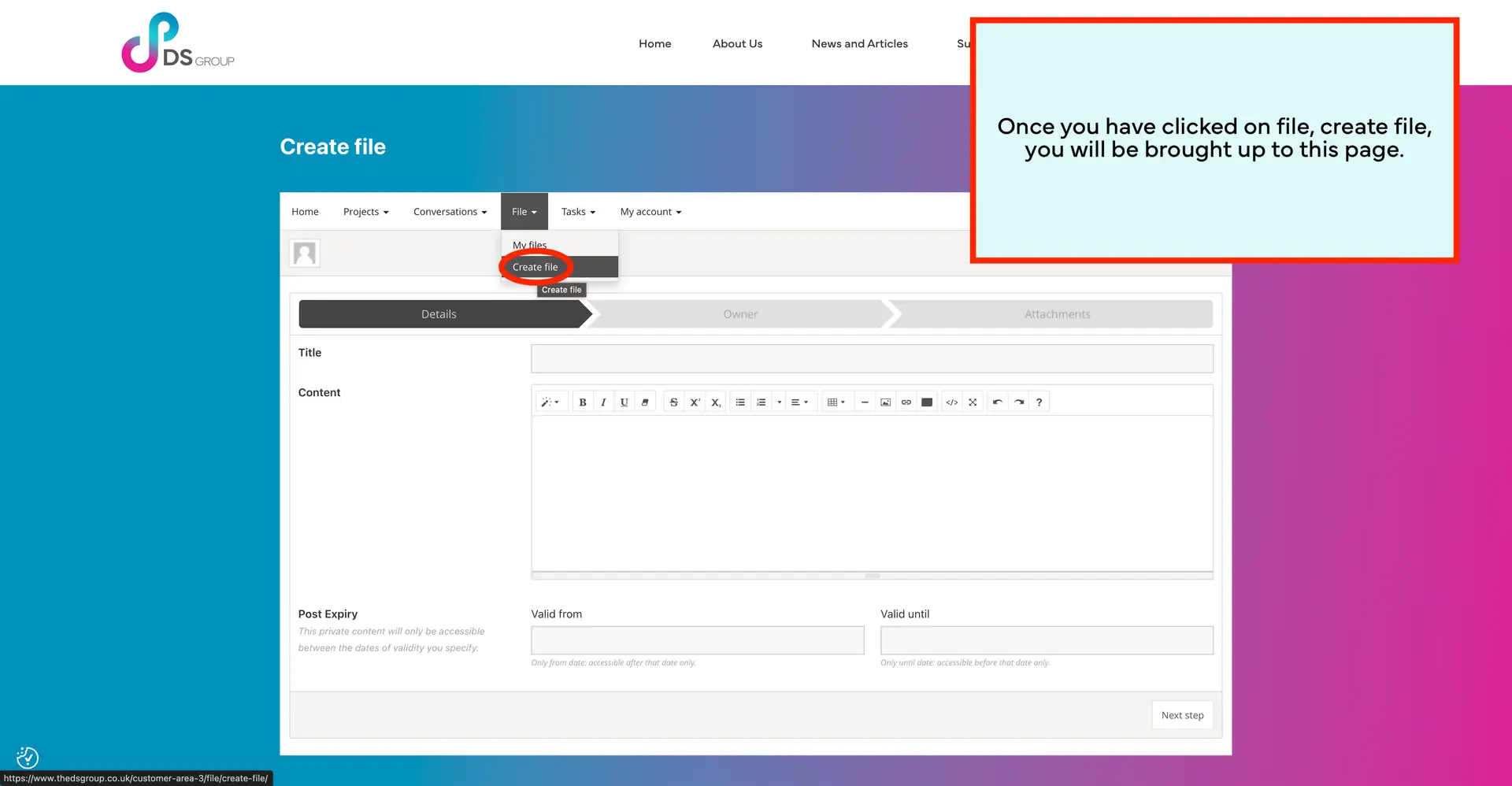
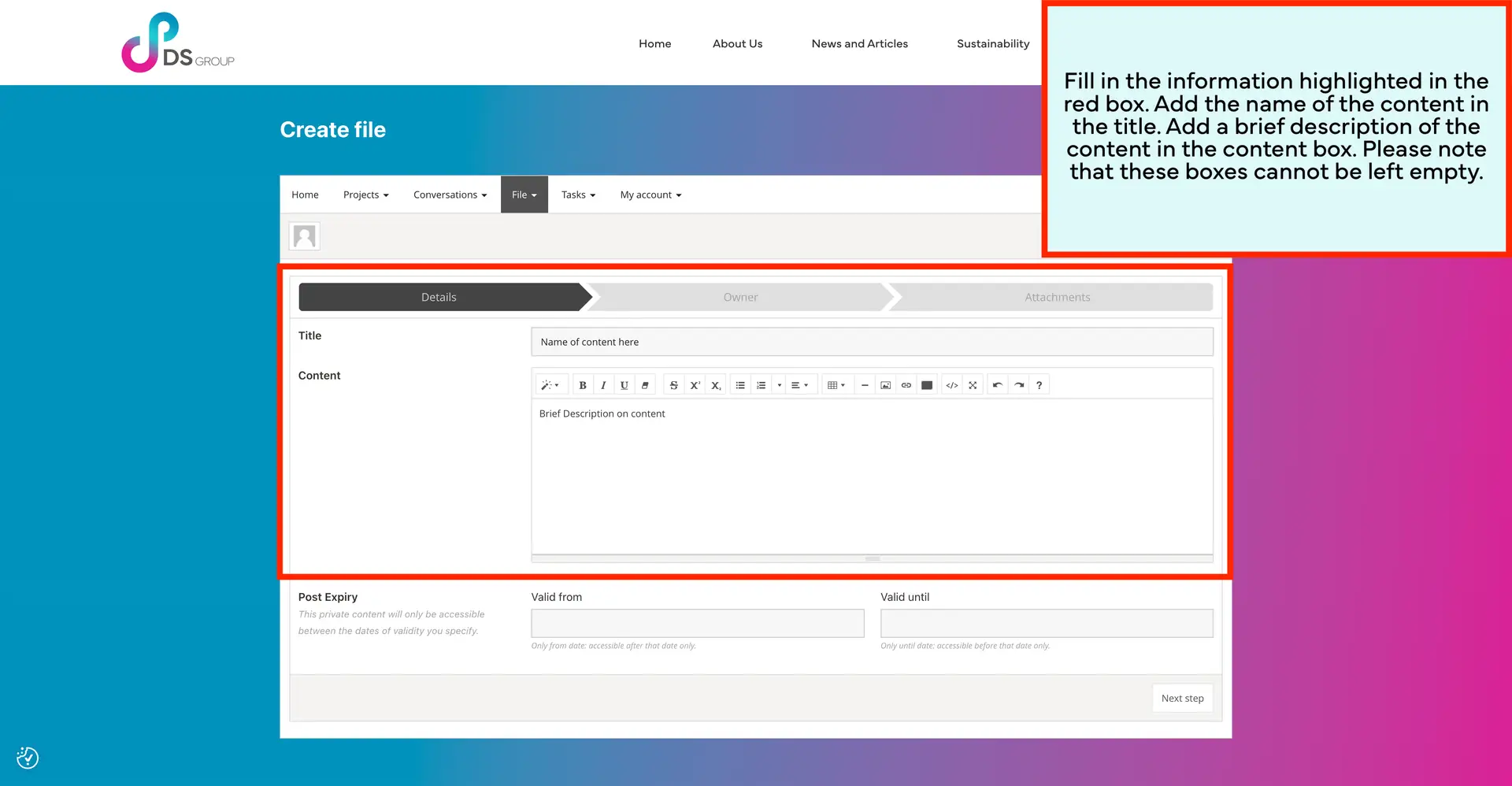
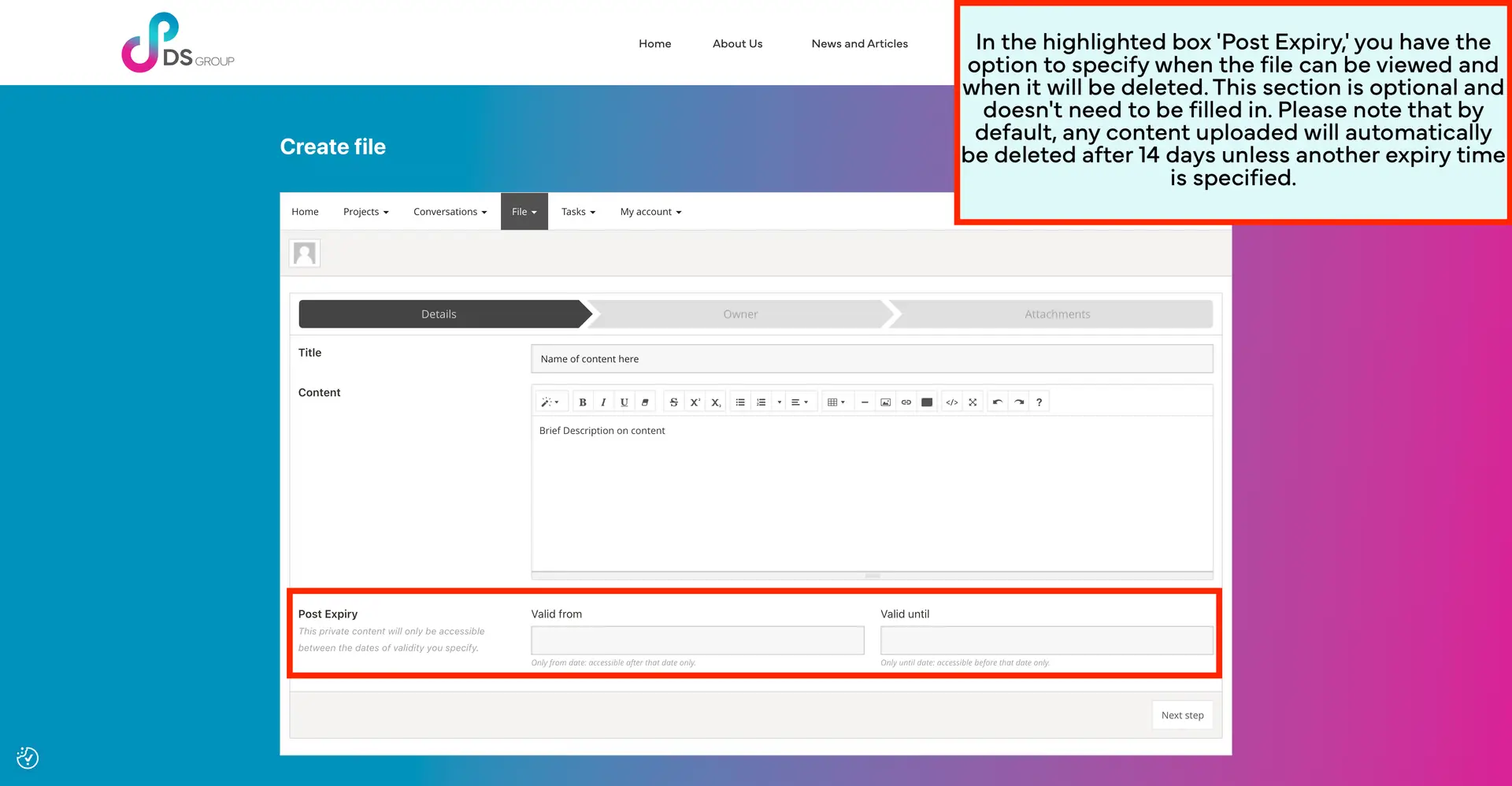
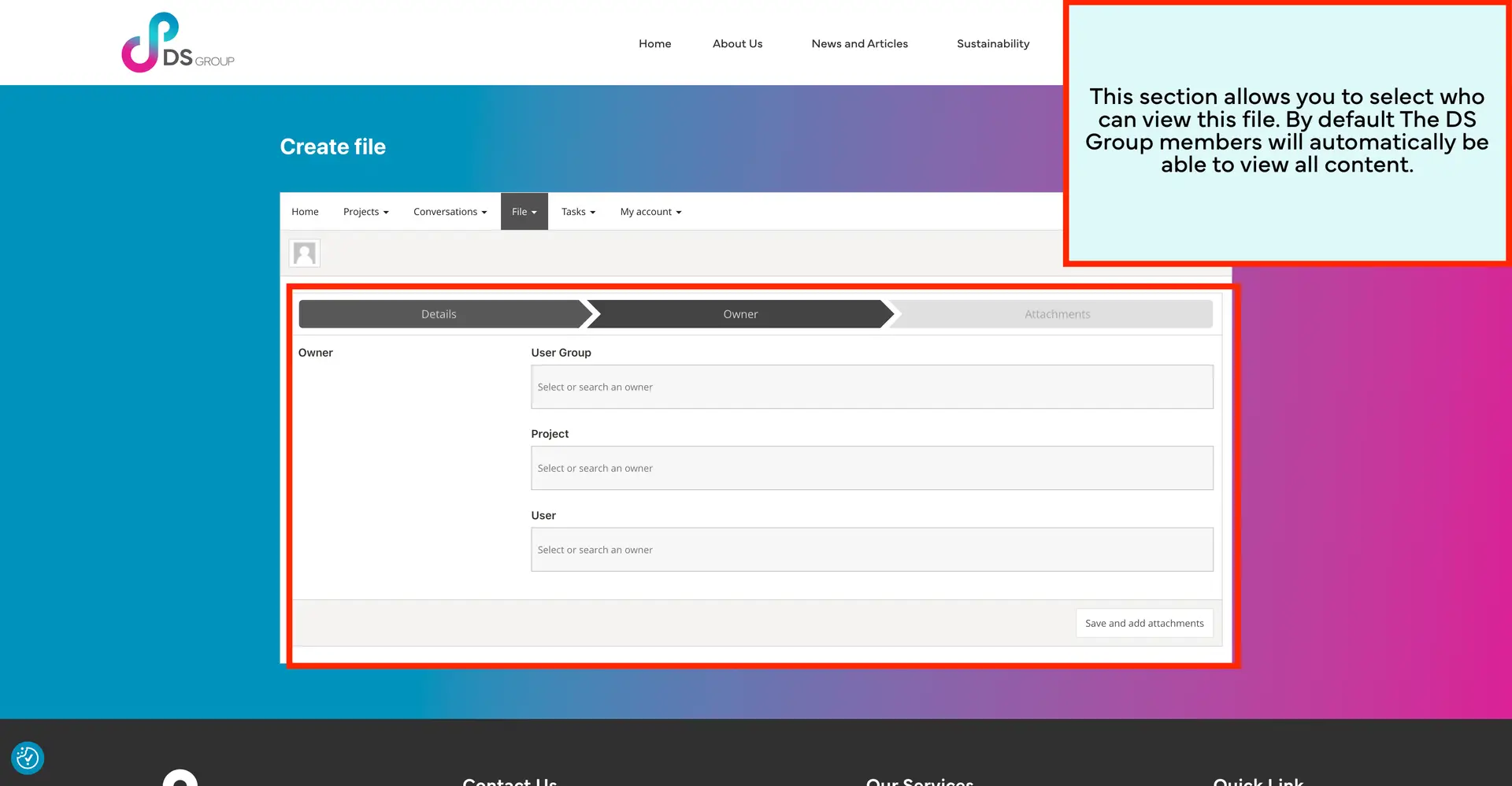
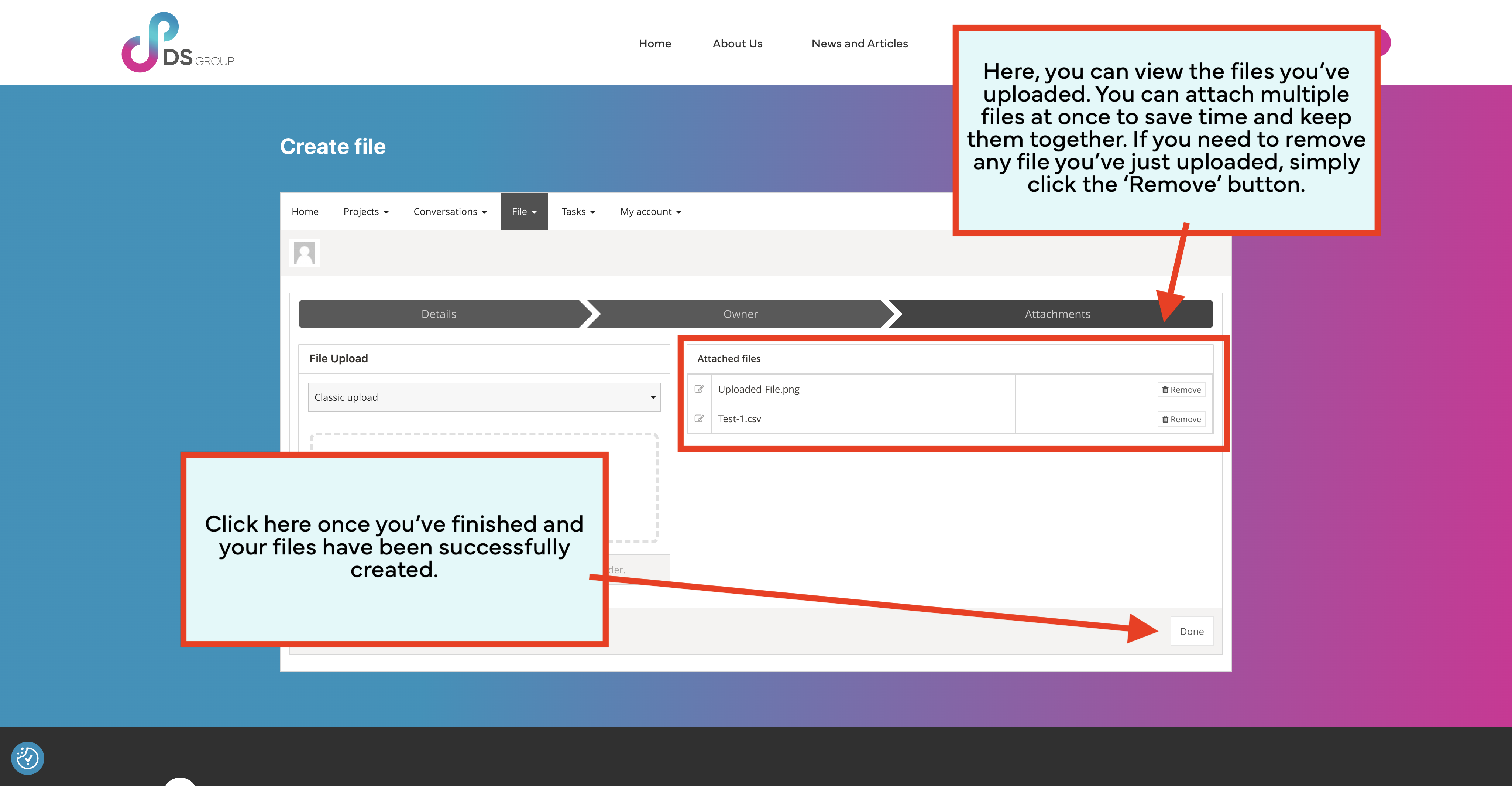
Create files-
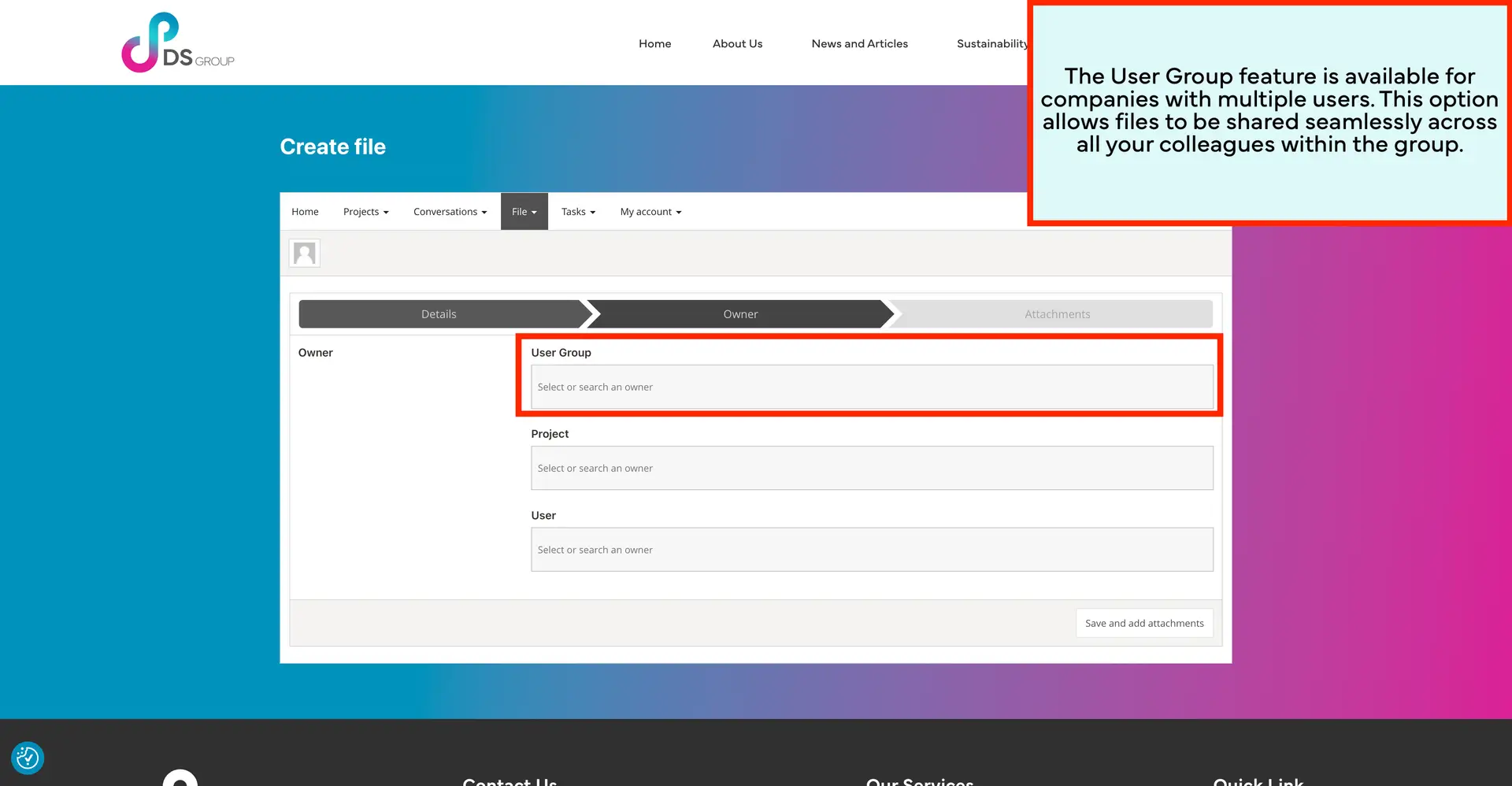
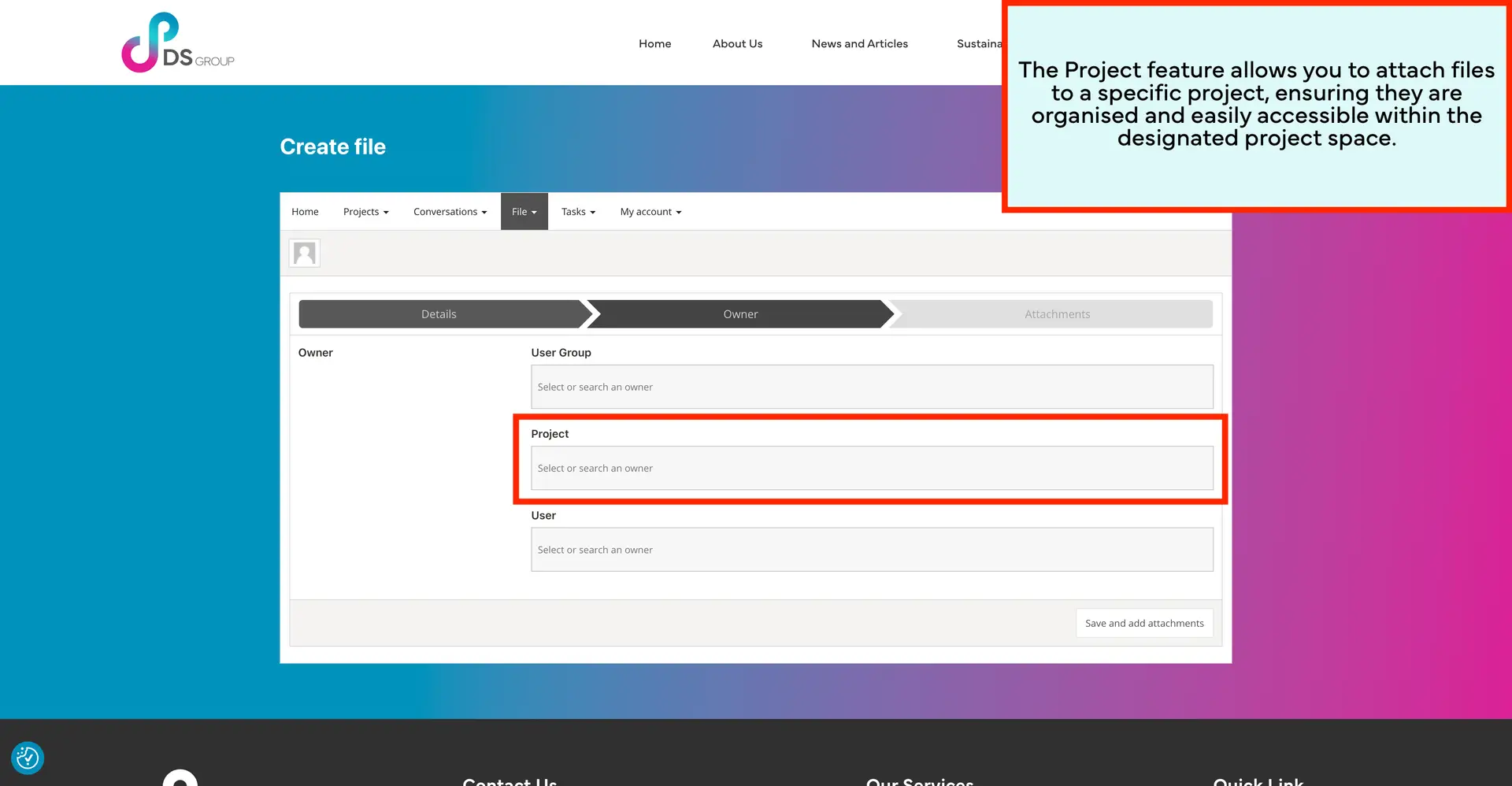
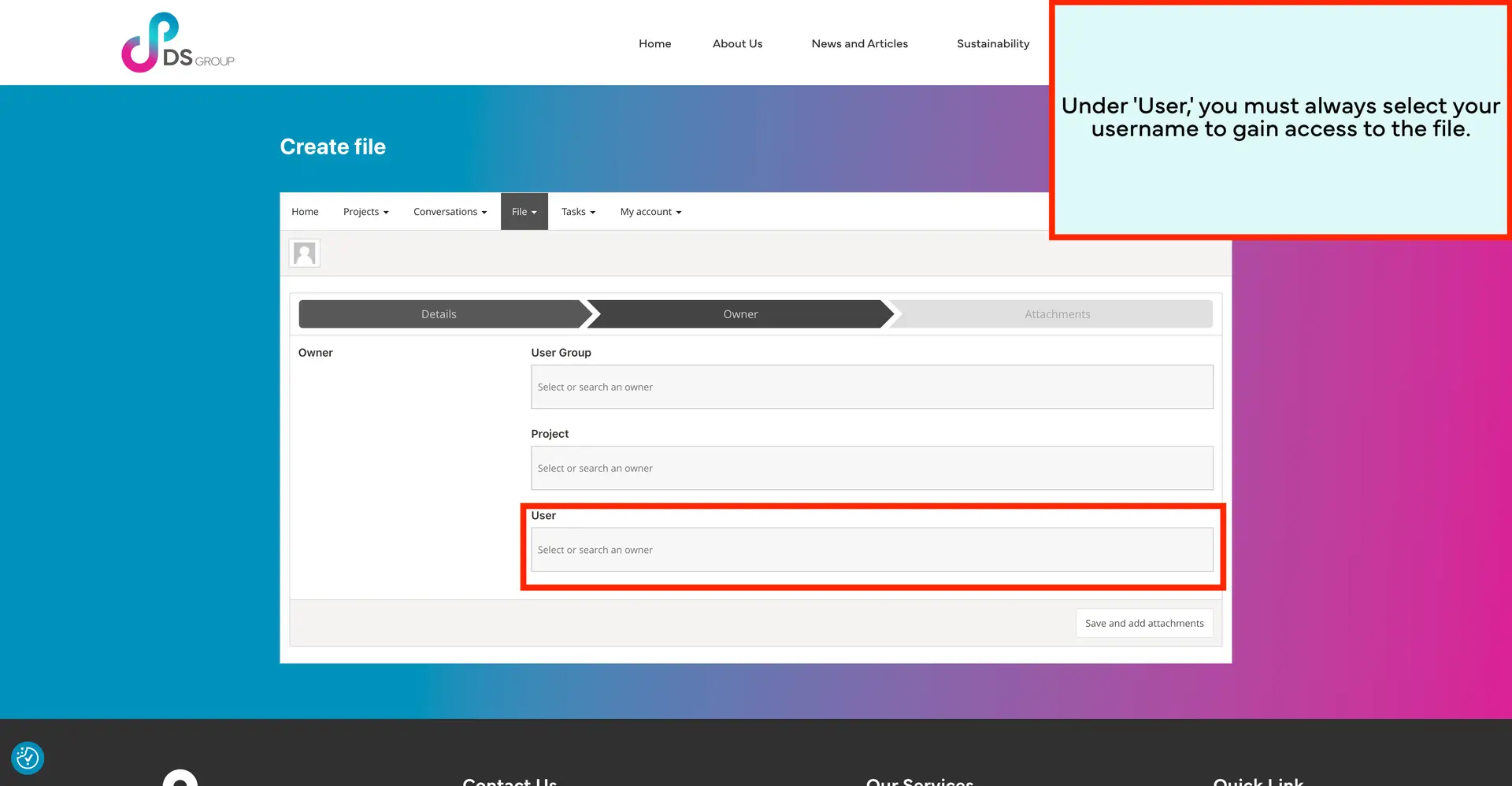
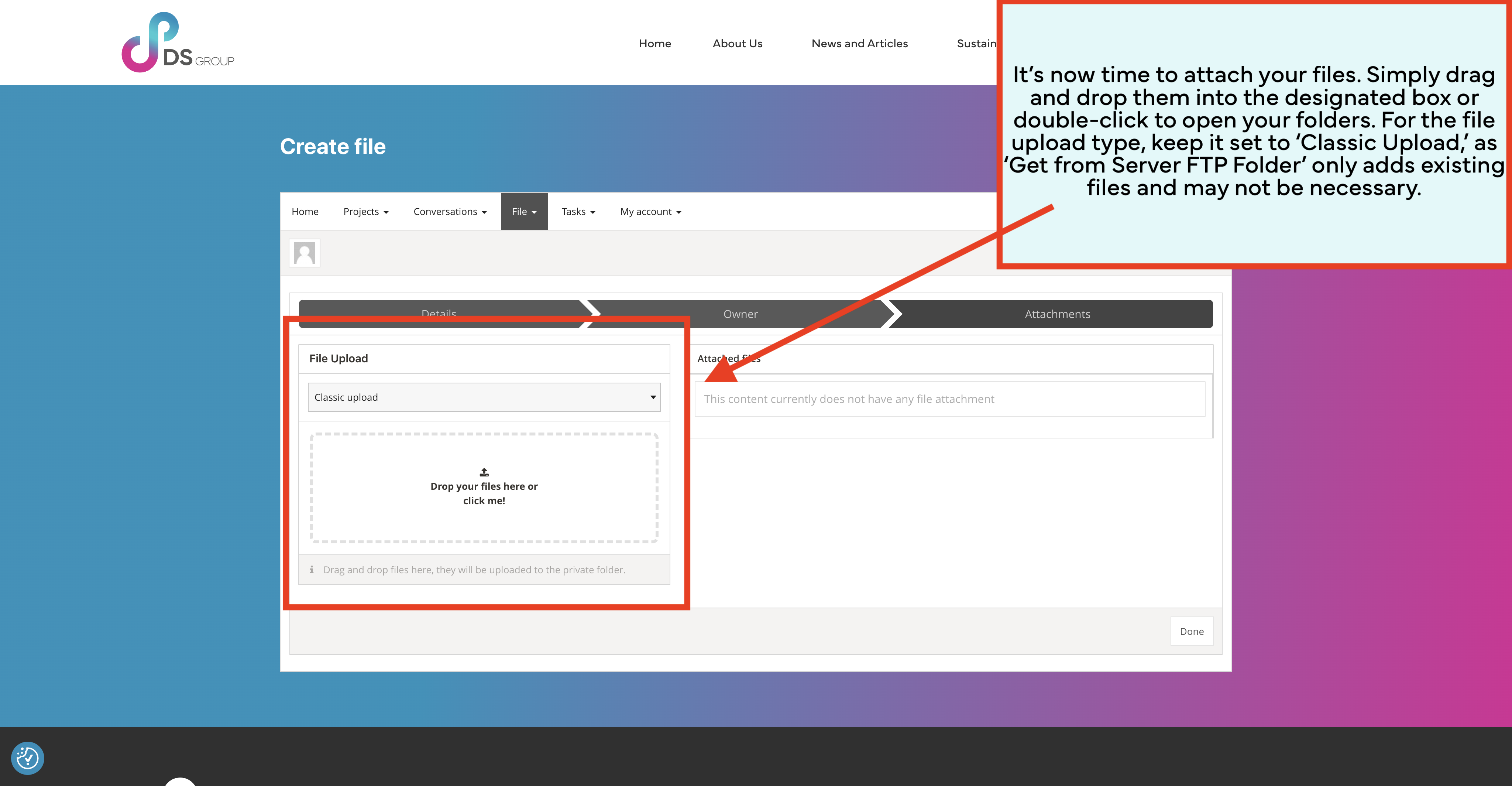
Here, you can upload any file type securely through our server.

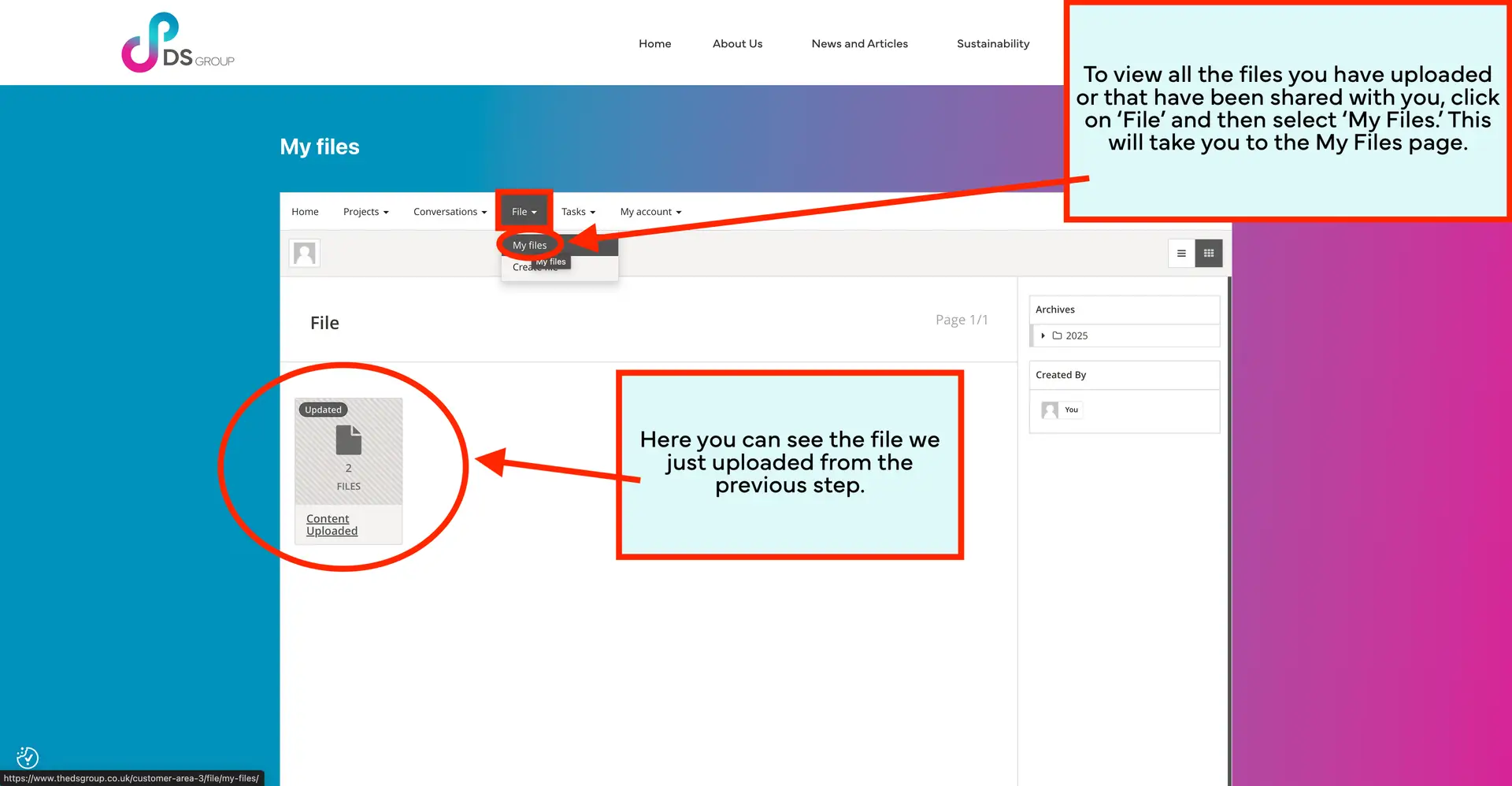
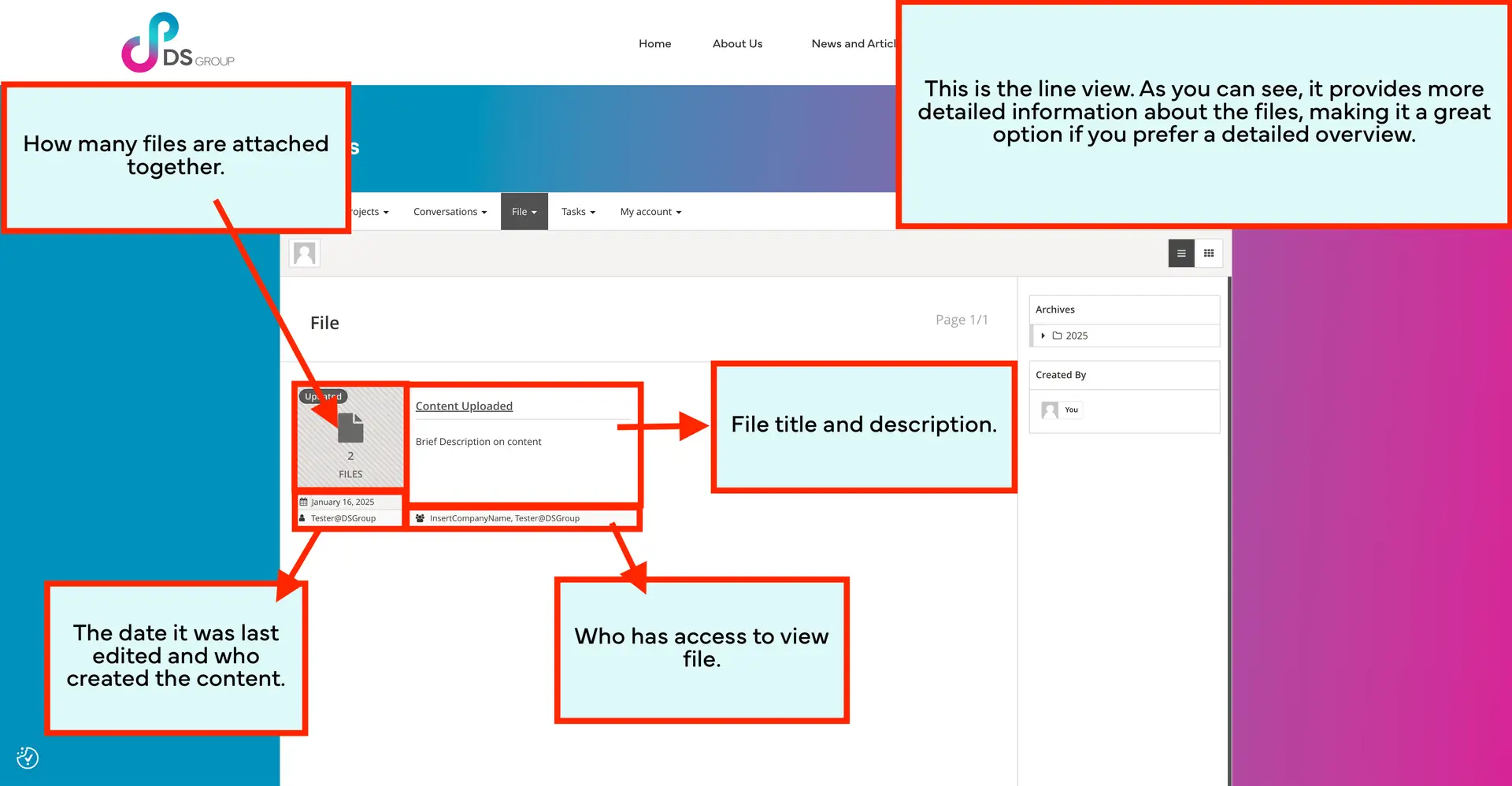
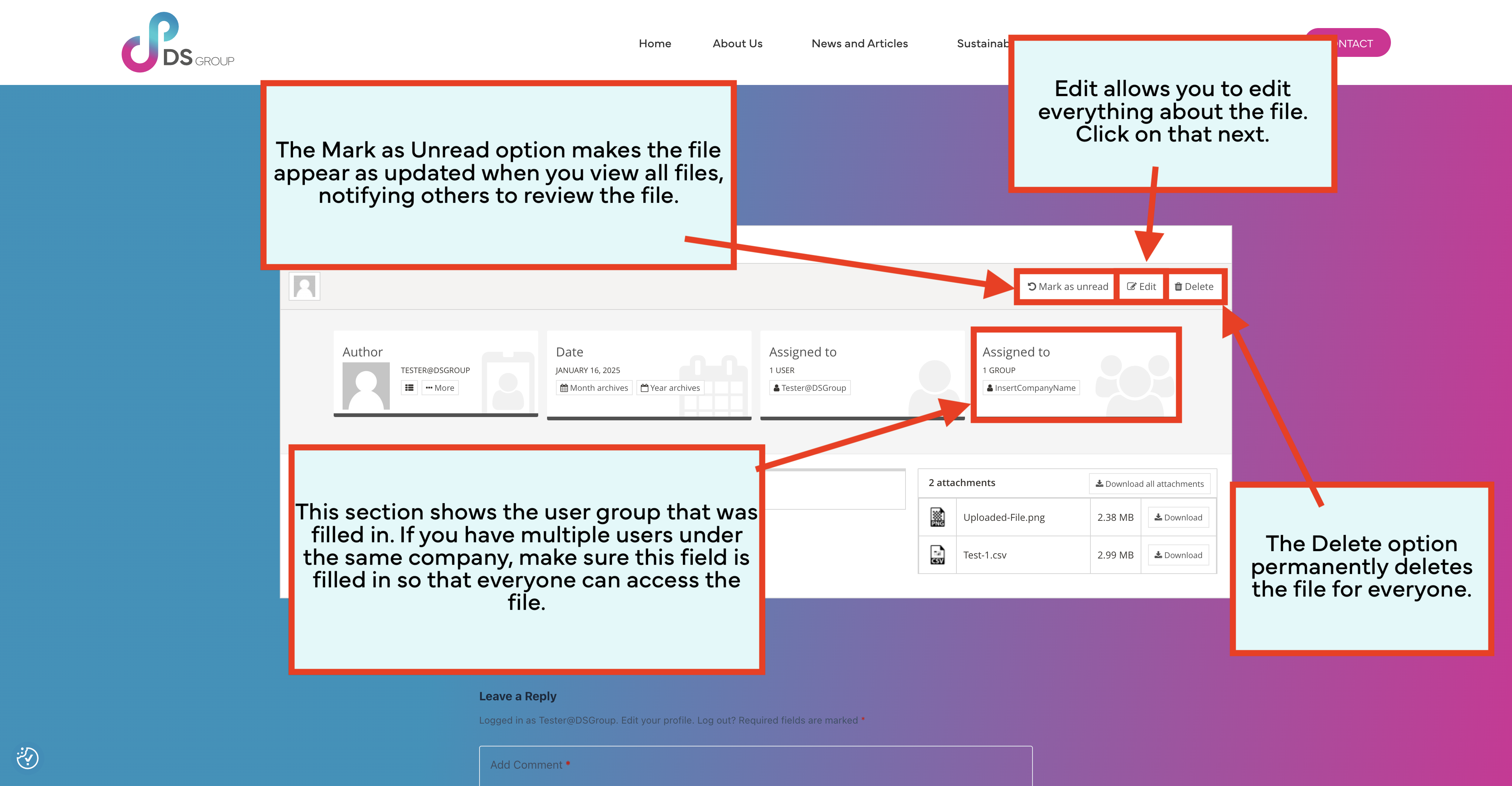
My files-
Here, you can access all the wonderful files that have been uploaded by you or us.



Conversations
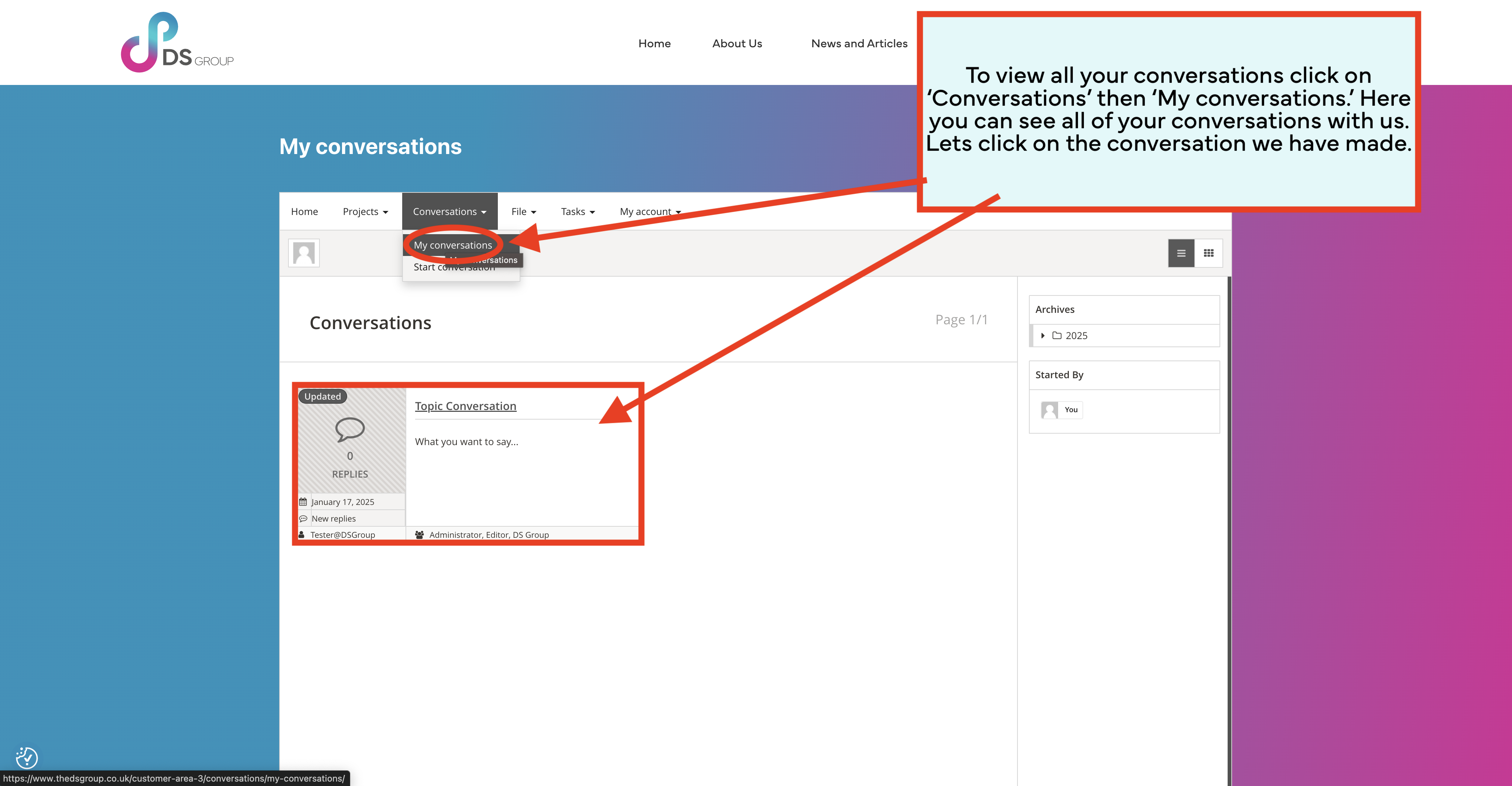
Conversations
This is the perfect way to stay in touch and communicate with us. You can create and view conversations, easily reply and respond, and receive email notifications whenever you get a reply.
Start conversations-

My conversation-

Tasks
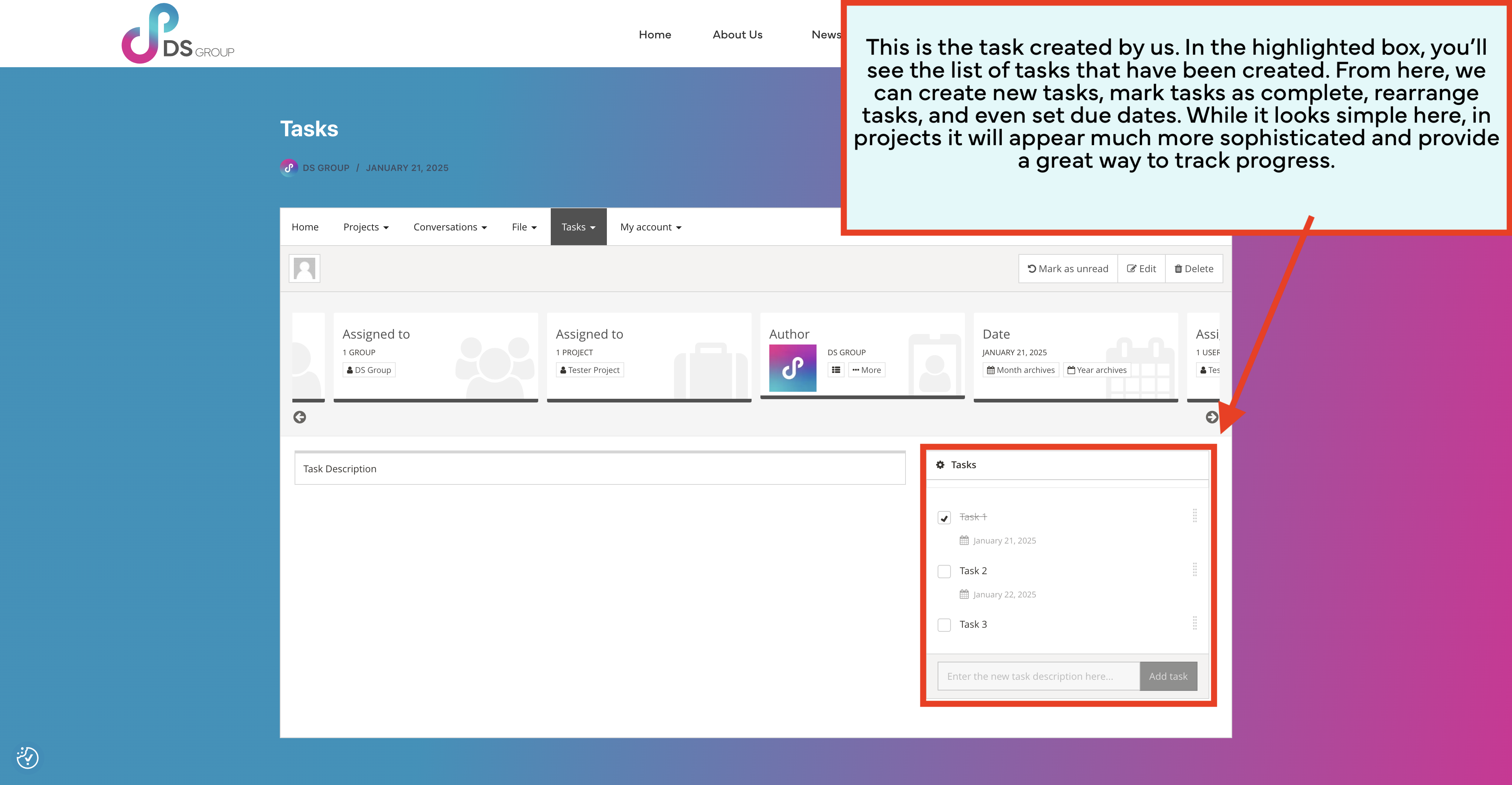
Tasks are linked to projects. You cannot create tasks but can add and edit to them. Being linked to projects gives us a great way to track progress made by showing what needs to be done and what has been completed.

Projects
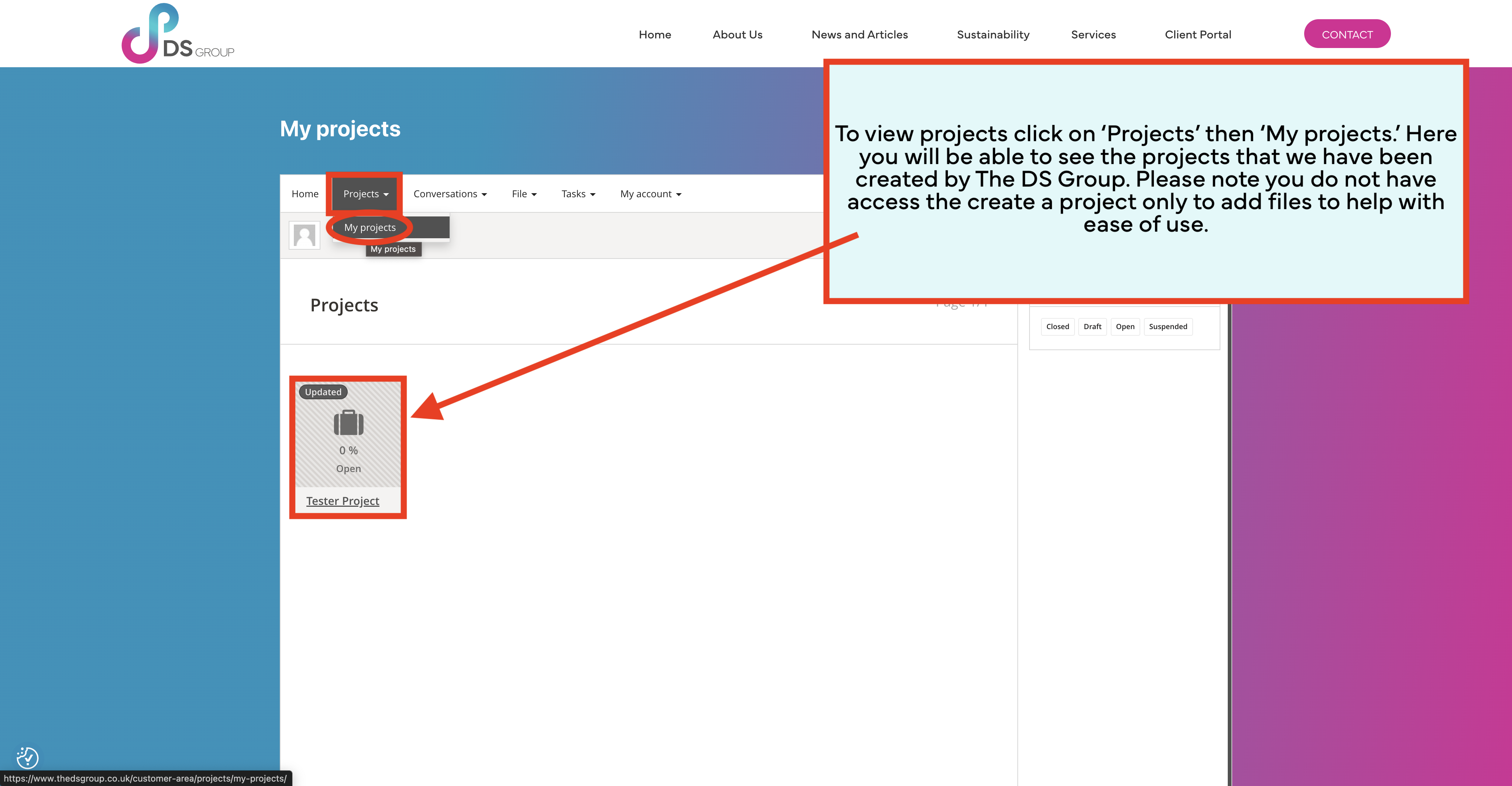
Projects
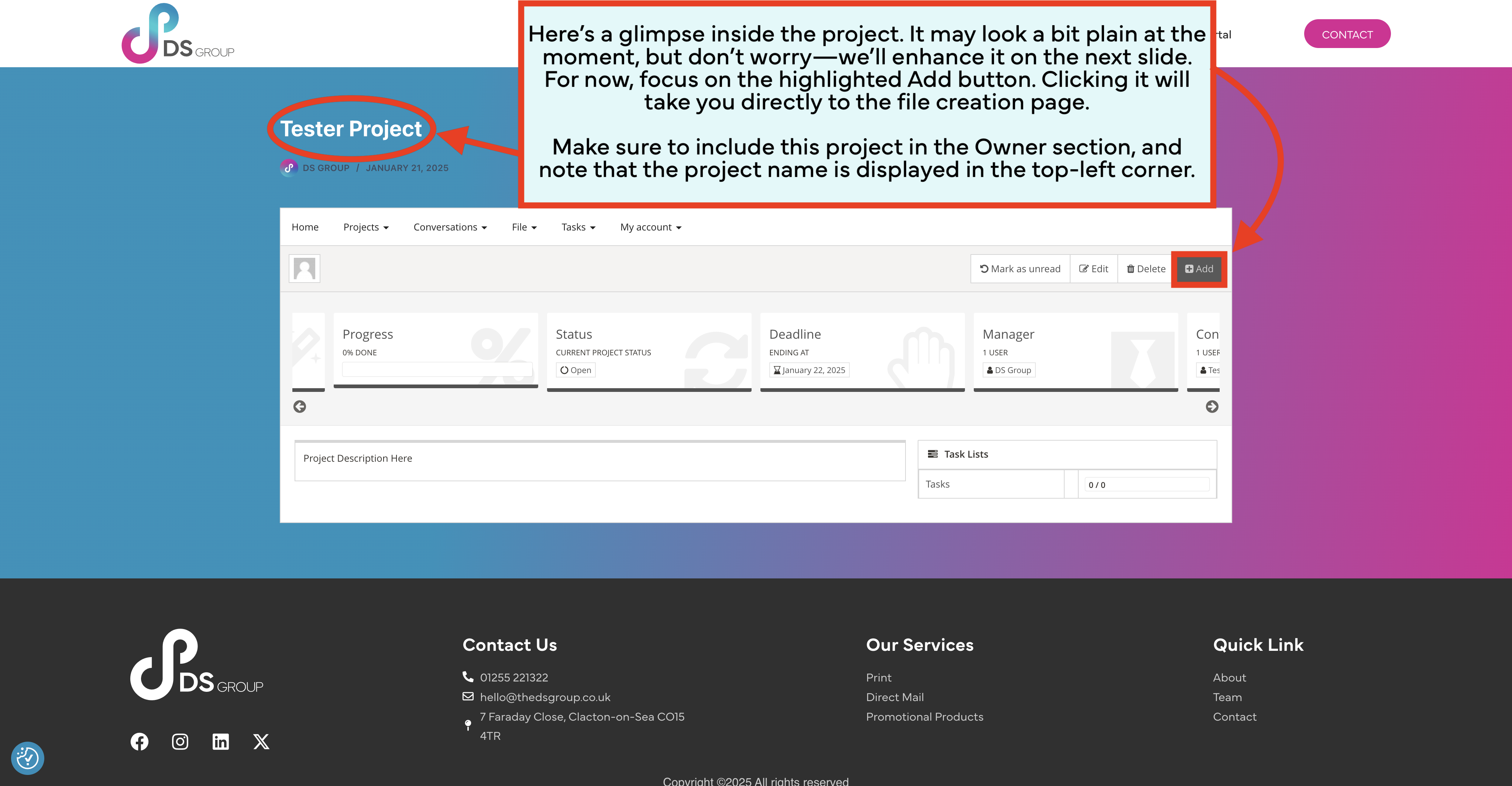
Projects go beyond just sending and receiving files; they’re perfect for managing larger tasks with us. They allow you to set up and link files, conversations, and tasks all together under one ‘Project.’ We believe this is the most efficient way to track everything in one place and keep communication seamless. With a project, we can keep you updated on every piece of work required. While you won’t be able to create projects, you will have access to view the ones we’ve created for you. This streamlined process lets us set up the projects on your behalf, and all you need to do is add the necessary files.


Notifications
Everything that is added, updated and changed will be notified to you and too us by email. Please also look into your spam for these emails.
Still unsure on how to use the portal?
Check out our PDF Guide below with a more wordy style. Still have trouble? Head over to our Client Portal Helpline Page for further support.
